

 Find Your
 Claiming your Bing Local listing is another of the FREE services that you can use to make your shop’s presence known and control the information that search engines see about your flower shop. It’s as simple as that. Flower Shop Network is always looking for new and easy ways to promote your shop so we have created this visual guide and tutorial to claiming your Bing Local listing. You may also want to print out the Checklist for Claiming Your Bing Listing to fill out for your records.
[Edit: Updated June 27, 2012]

Create your free Bing Local listing by clicking on this link: www.bing.com/businessportal and then selecting “Get Started Now” if you already have a Windows Live ID.
Signing in will tell you whether you have any listings associated with that ID or not. This is helpful in the event that multiple people use the same e-mail address for your company (such as info@myflowershop.com) and have set up an account of which you were not aware.
If you do not have a Windows Live ID then you will need to select “Sign Up”.
Find Your Listing
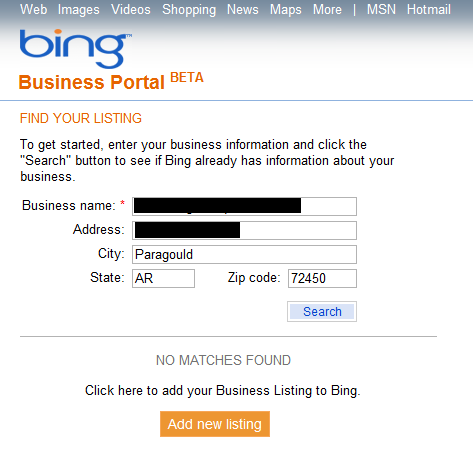
You will be required to enter your business name, address, city, state & zip, then click on “Search.” This will check to see if a listing or similar listing exists for your business.
If no matches are found, click on the “Add new listing” button to add your business listing. If your business is found, click “Yes” to update your business.
Add New Listing
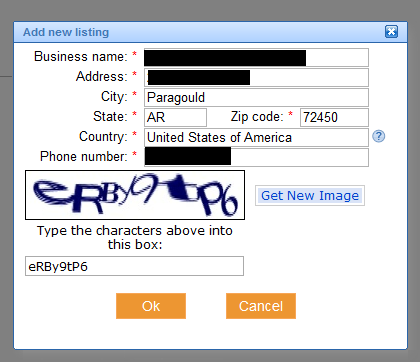
If you clicked on “Add new listing” you will see another box that requires you to enter: your business name, address, city, state, zip, country and phone number with area code. The box also requires the correct entry of the CAPTCHA code displayed, then click “Ok” to proceed.

Do You Have an E-mail Address
The next screen asks if you have an e-mail address or do you want to create a free MSN Hotmail e-mail address. Make your selection and click “Continue”.
If you choose to use an existing e-mail address, select “Yes”, then continue and you will be directed to log in using that existing e-mail address. Click Here To Skip Past Making An MSN Email Address

MSN Mail
If you select “No” then you will be directed to the following screen to obtain a new MSN Hotmail e-mail address.
- Create Your E-mail Address
Select your country from the drop-down box and the Hotmail address you would like to have, then click on “Check Availability”. If it is available this screen returns and you will see a line item above the e-mail address that says “The e-mail address xxxx @hotmail.com is available”. If it is not available, you will be prompted to make another choice for your Hotmail e-mail address, and check availability of this 2nd e-mail address.
- Create Your Password
Next you will create your password for this account and choose your secret question/answer, should you need your password reset. If you have another e-mail address you may also list in this section.
- Enter Your Account Information
Personal account information is completed next. Your gender is kept for Bing Local records, but will not be used on your listing. Birth year is asked only to verify that you are above the legal age minimum for obtaining an account (the minimum is 13.)
- Verification
You must input the CAPTCHA correctly, accept the Microsoft service agreement and the Microsoft online privacy statement on the bottom of the screen to proceed.
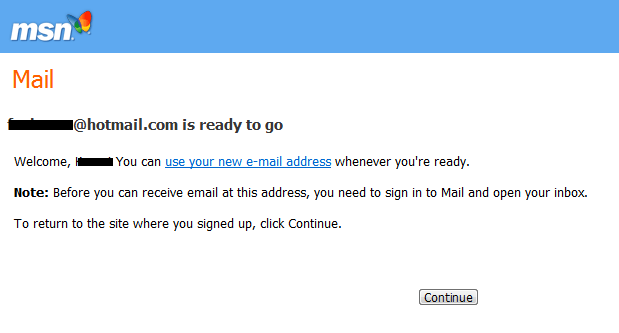
Next you will see a message that tells you that that your new email address is ready to go. Click the “Continue” button.
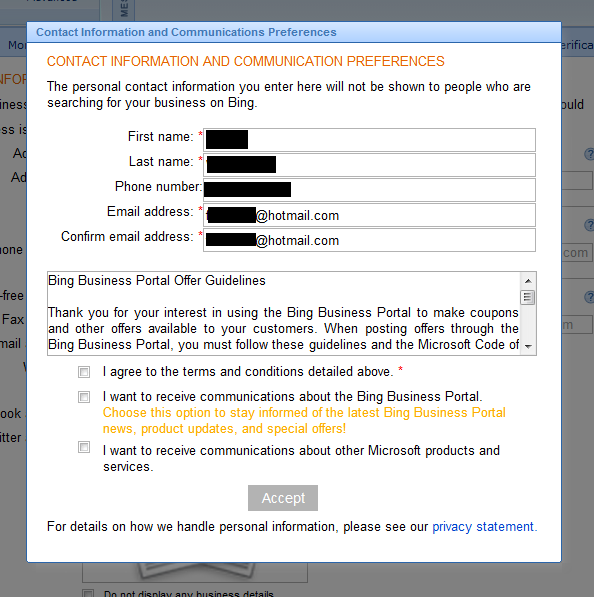
Contact Information and Communications Preferences
Contact information is to be completed next. Fill out your personal contact information in the appropriate fields and accept the terms & conditions. If you wish you can choose to receive communications from Bing Business Portal and to receive communications from Microsoft here. Click the “Accept” button to move forward.

Bing Business Portal – Details
Your business information is required on the next few pages. In addition to your business name, address, city, state, zip, you must list what kind of business you have, such as “Florist.”
Space is provided to list optional additional information such as phone numbers, email address, and website address, as well as Facebook & Twitter profile addresses. Your business Logo may also be added here.
If you do not want your business address or any business details displayed, be sure that the small boxes are checked. If your business does not have a website address, be sure that box is checked as well.
Click the “Next” button to continue.
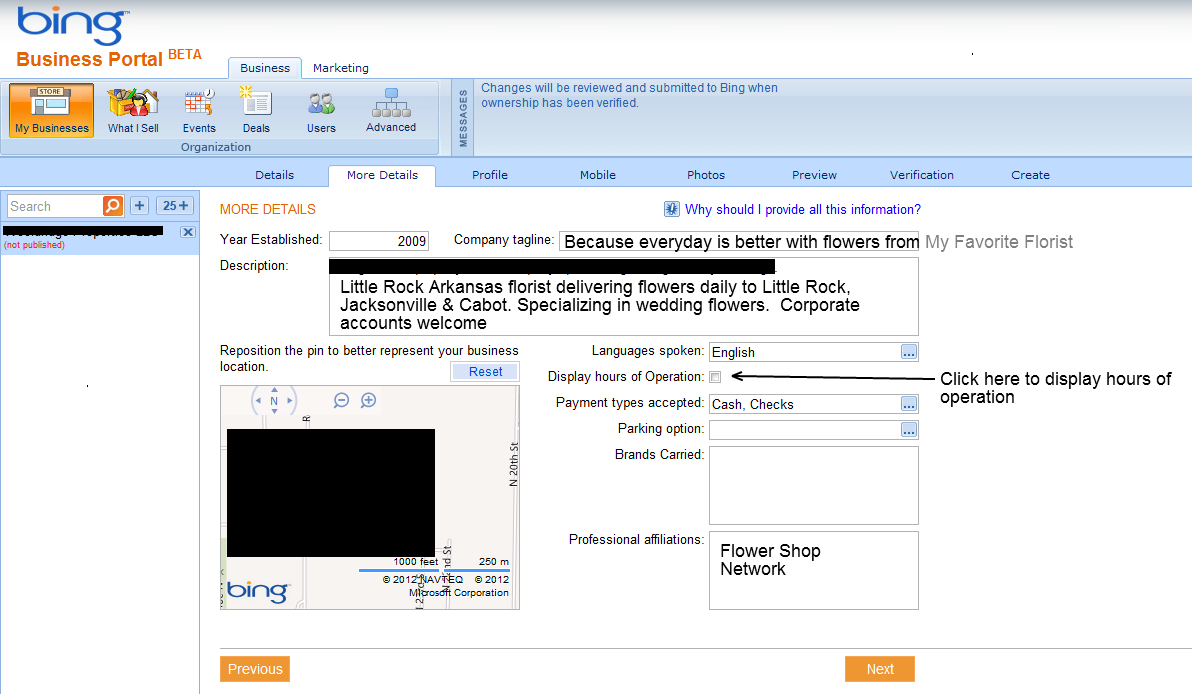
Bing Business Portal – More Details
The next page continues with more business details. If you want to know why you should provide all of this information, Bing has provided the answer to this question by clicking on “Why should I provide all this information?” Information on this page is optional.
- Year Established
Enter the year your business was established.
- Company Tagline
The tagline refers to a single phrase used to add unique appeal to your shop. For instance, “Because every day is better with flowers from My Favorite Florist.”
- Description
The Description is simply a description of your business. This should include your city and state, but never the name of your shop. It should include words that people will be searching for. An example is “Little Rock Arkansas florist delivering flowers daily to Little Rock, North Little Rock and Cabot. Specializing in wedding flowers. Corporate accounts welcome.” Keep it short, but describe your business thoroughly.
Languages Spoken
Select the language or languages spoken in your shop.
- Display Hours of Operation
If you want the Hours of Operations displayed, click on the box & another window will open. Here you will be able to add your daily store hours, as well as identify the days your shop is closed.
- Payment Types Accepted
Next identify the types of payments you will accept. Click on the drop down and you will be able to select from many forms of payments such as, credit cards, Paypal, debit cards, cash or checks.
- Parking Option
You may also select the types of parking provided at your shop.
- Brands Carried
Brands carried refers to the brand name items that you may carry in your shop. Whether a popular local item or a national brand, this is the place to include those items.
- Professional Affiliations
Professional affiliations is where you list wire services (like Flower Shop Network), state florist associations and other professional associations that you are affiliated with.
- Map
A location map will also be displayed on this page. Check to make sure your shop location is correct. If it is not, then move the pin to reset the location. If correct, click “Next” to move to continue to the next page.

Bing Business Portal – Profile
Specialties allow you to show the areas that are relevant to your business. This is an important part of creating a full business profile.
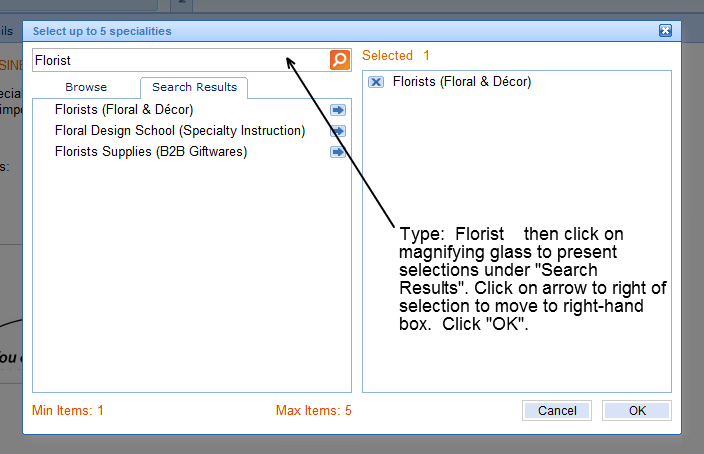
Select up to 5 specialties
Type “Florist” then click on the magnifying glass to search. Bing will show different specialties based on what you search for. Click the arrow to the right of a result to move it to your selected specialties. You can select up to 5 specialties, remember to only choose ones that apply to your flower shop. Click “Next” to continue.

Bing Business Portal – Mobile
This page is the mobile site page. Here you can choose to create free mobile website, QR code or pick up or delivery if ordering by smart phone.
The “Example” button as well as the line items (Mobile website?, Learn more about QR codes, Ordering by smartphone) explanation buttons are very, very helpful in explaining the benefits of mobile websites. It is to your advantage to read these items thoroughly before moving to the next page.
The area on the lower half of the page allows you to list up to 10 offers that mobile customers can view. Click “Next” to continue.
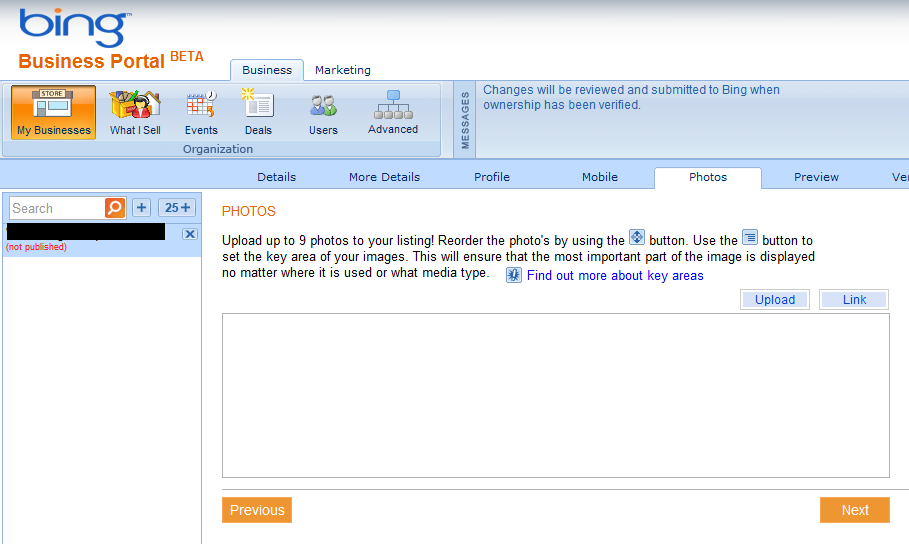
Bing Business Portal – Photos
This page allows you to display up to 9 pictures on your Bing listing. Photos may be uploaded from pictures stored on your computer or linked.
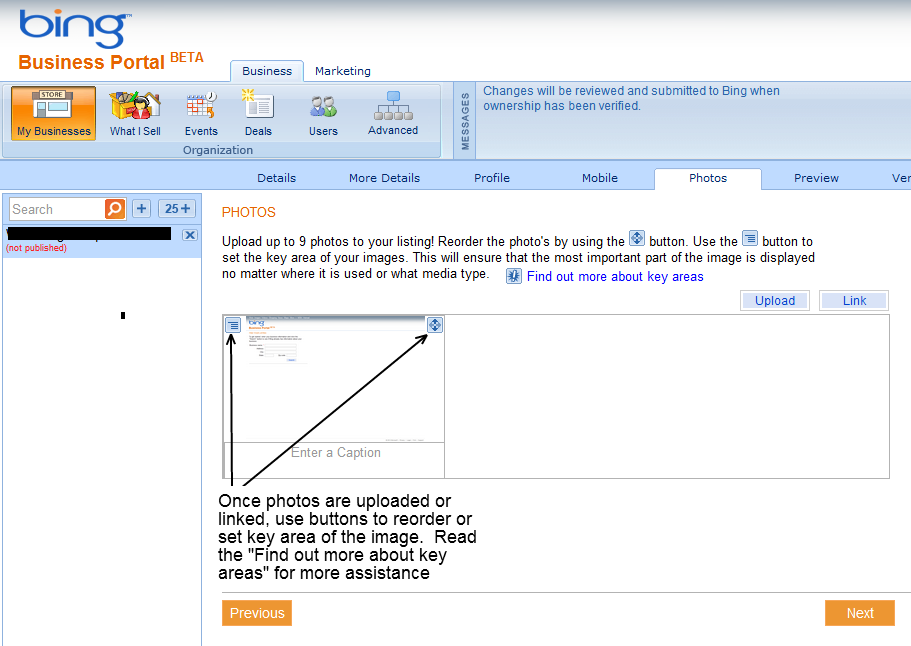
Once the pictures have been uploaded you may re-arrange or re-size those photos using the buttons that appear above the image. Click “Next” to continue.
Bing Business Portal – Photos
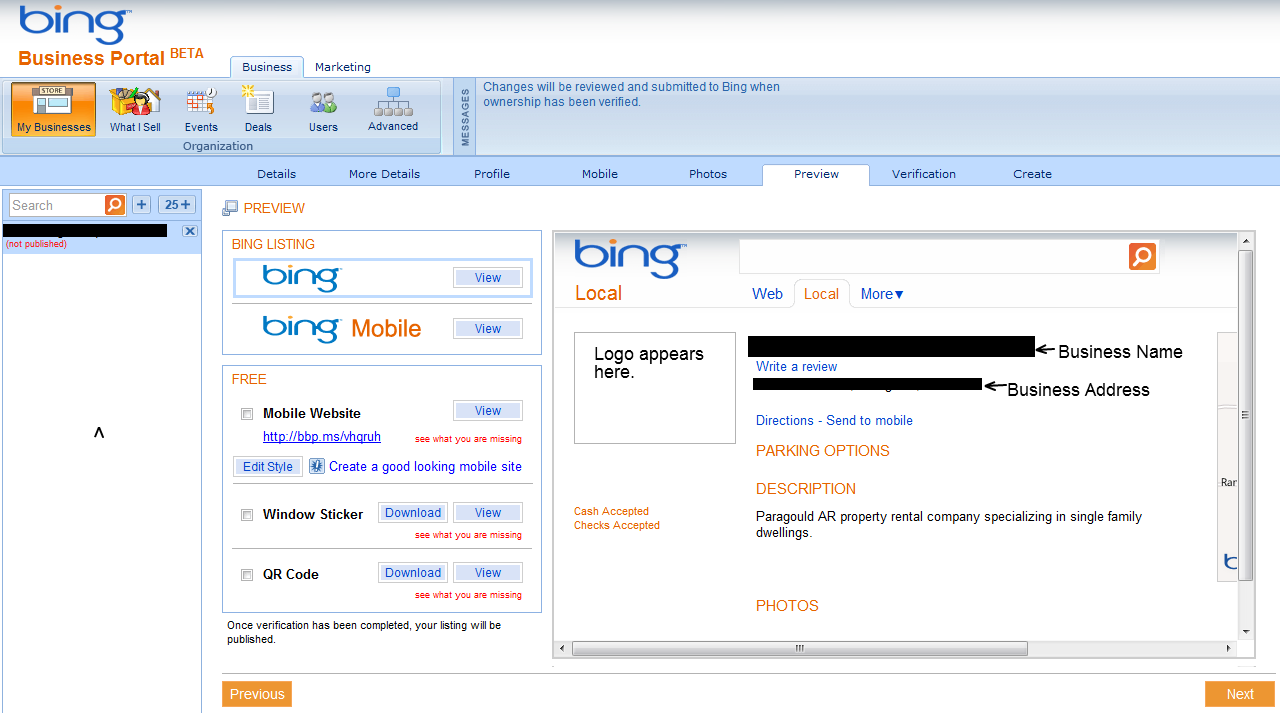
Now you are ready to preview your Bing Listing, Bing Mobile, and Bing Local. Click on any “View” button on the left to see how your information will actually look.
If you have selected to have a free mobile website, you may also edit it from this page by clicking the “Edit Style” button.
You have the option of viewing and downloading a window sticker that will show QR Code, methods of payment, and other information that you have entered. The option to view and download the QR code itself is also available.
Click “Next” to continue.
Bing Business Portal – Verification
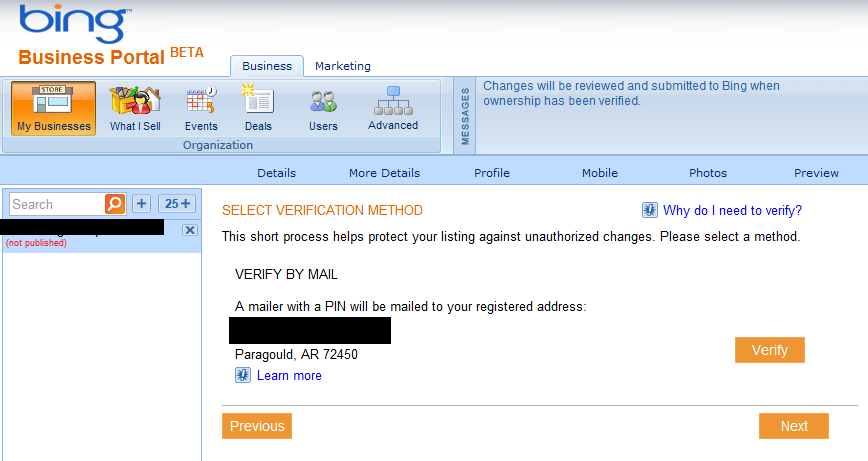
Now that you have completed all of your business information, a verification process is required.

If it is a new listing, Bing will send a PIN by mail to your registered business address. By clicking the “Verify” button, you see the “Verification Pending” notice with more information on the verification process.

If you click “Next” button you will see a place to enter the PIN once it is received. By entering the PIN and clicking “Verify” you are validating your listing.
Bing Business Portal – Create
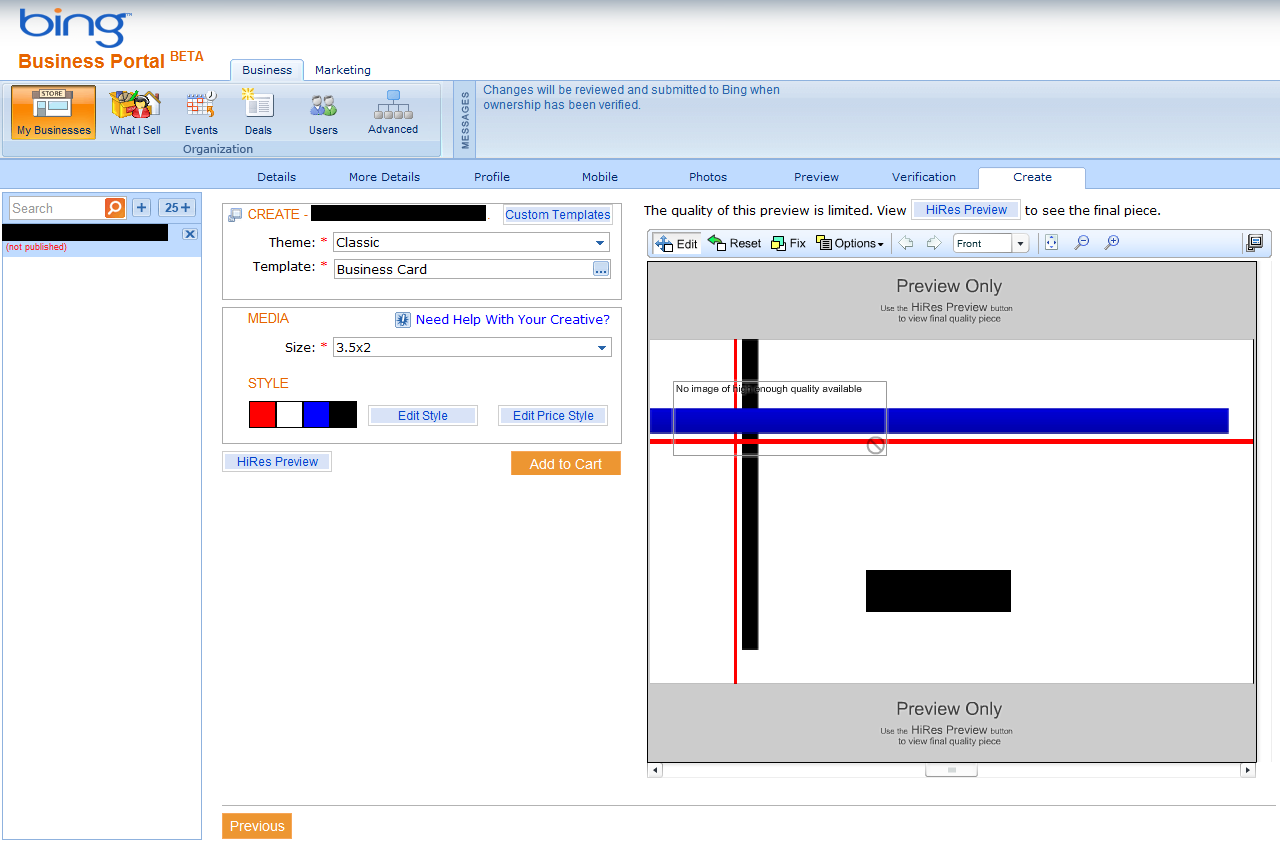
The last page is an optional page where you can create custom looking business cards, postcards or posters. There are 4 themes to choose from: abstract, classic, retro or simple. Again this is an optional page with a shopping cart, so should you choose to utilize this function, you will incur costs from Bing.
Have You Claimed Your Yahoo Local Listing?
**Canadian or International Bing Local Listings
If your business is located in Canada or any country other than the US, and you are attempting to claim your Bing local listing through Bing’s Business Portal with a Canadian or international address, you will find this is not possible at this time.
After entering your business information and searching to see if there is a match, you are prompted to “Add New Listing.” Even though you have entered a Canadian or international postal code, the country name defaults to “United States of America.” When you hover over the question mark at the end of the country field you will see the message “Bing Business Portal is only available in the United States at this time.”
Flower Shop Network will continue to monitor this situation and will quickly let you know if there are any changes.



i have been evaluating the search results of Microsoft Bing compared to Google and they are comparable. Bing gives almost the same relevant search results just like Google.
FYI… Microsoft requires using Internet Explorer> I tried to use Chrome for this process but could not as Bing! stated that it did not support the Chrome browser.
This knowledge may save some of you a step in the process if IE is not your default browser.
great content. Would love to see more!
Great script!